
Switching from POP3 to IMAP: A Step-by-Step Guide
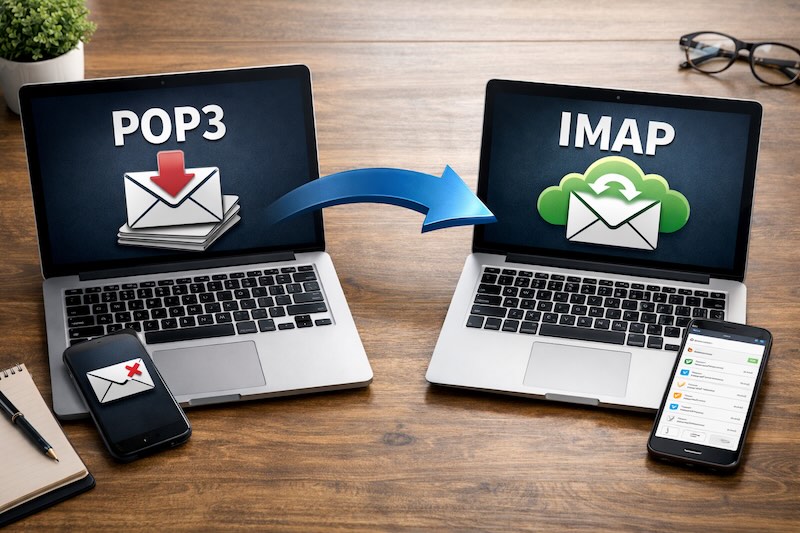
This guide will walk you through migrating your Very Good Email Company account from POP3 to IMAP.
The process is straightforward, but it’s important to follow these steps carefully to ensure you don’t lose any of your existing emails.
Before You Start
Time needed: typically around 30-45 minutes
What you’ll need: Access to your current email program and your Very Good Email Company login details
Important: Don’t delete your existing POP3 account until you’ve confirmed all your emails have been preserved.
We’ll walk you through…
Step 1: Prepare Your Existing Emails
Since POP3 stores emails on your computer rather than the server, we need to make sure these are safely preserved before switching.
Create a backup folder
- In your email program, create a new folder called “POP3 Archive” or “Old Emails”
- Select all emails from your inbox, sent items, and any other folders
- Copy (don’t move) these emails into your backup folder
- This gives you a safety net whilst we complete the migration
Export your emails (optional but recommended)
Most email programs allow you to export emails as a backup file. This is an extra precaution:
- Outlook: File → Open & Export → Import/Export → Export to a file → Outlook Data File (.pst)
- Thunderbird: Tools → Export (or use the ImportExportTools add-on)
- Apple Mail: Select mailboxes → Mailbox → Export Mailbox
Store this backup file somewhere safe, like an external drive or cloud storage.
Step 2: Add Your Account Using IMAP
Now we’ll set up your account fresh using IMAP. Keep your existing POP3 account running for now – we’ll remove it later.
Your Very Good Email Company IMAP Settings
You’ll need these details when setting up:
- Incoming Mail Server (IMAP): mail.verygoodemail.com
- Port: 993
- Security: SSL/TLS
- Outgoing Mail Server (SMTP): mail.verygoodemail.com
- Port: 465
- Security: SSL/TLS
- Username: Your full email address
- Password: Your email password
Setting up in common email programs
Outlook (Windows/Mac) short version:
This short version works if autoconfig is set for the relevant domain, such as tvgec.uk, f2s.com, gotadsl.co.uk etc. and it will automatically configure the settings for you. It will ask if you want to download the configuration data and you need to accept, or the setup will fail.
- Go to File → Add Account
- Enter your email address and click “Connect”
- Choose IMAP from the account type options
- Enter the settings above when prompted
- Complete the setup wizard
Outlook (Windows/Mac) long version:
- Go to File → Add Account → Manual Setup, or Additional Server Types
- Then IMAP
- It will then ask for your name/email address and password
- Followed by account type, incoming/outgoing mail server and your login information (username/password)
- Click on More Settings and select the Outgoing Server tab
- Select My outgoing server (SMTP) requires authentication
- Enter your email address and click “Connect”
Thunderbird:
- Go to Tools → Account Settings
- Click “Account Actions” → “Add Mail Account”
- Enter your name, email address, and password
- Click “Configure manually” and enter the IMAP settings above
- Click “Done”
Apple Mail:
- Go to Mail → Settings → Accounts
- Click the “+” button to add an account
- Select “Other Mail Account”
- Enter your details and the IMAP settings when prompted
Smartphone/Tablet:
- Go to Settings → Mail/Accounts → Add Account
- Choose “Other” or “IMAP”
- Enter your email address and the IMAP settings above
Step 3: Upload Your Old Emails to the Server
Once your IMAP account is set up and working, you’ll want to move your old POP3 emails onto the server so they’re accessible from all devices.
- In your email program, you should now see two accounts: your old POP3 account and your new IMAP account
- In your IMAP account, create any folders you’d like to organise your emails into (optional)
- Select emails from your POP3 account folders
- Drag and drop them into the corresponding folders in your IMAP account
- This uploads them to the server – you’ll see them syncing
Tip: If you have thousands of emails, do this in batches of a few hundred at a time. Large uploads can sometimes timeout.
Step 4: Verify Everything Has Transferred
Before removing your POP3 account, double-check that everything’s safely on the server:
- Log into webmail at https://mail.verygoodemail.com
- Check that all your important emails and folders appear there
- If you use multiple devices, check that emails appear on your phone, tablet, or other computer
- Verify that sent items and drafts have transferred
If anything’s missing, go back to Step 3 and transfer those emails.
Step 5: Remove Your Old POP3 Account
Once you’re satisfied everything has transferred:
- In your email program, go to account settings
- Select your old POP3 account
- Remove or delete the account
- Your emails are now safely stored on the server via IMAP
Note: The local backup you created in Step 1 is still on your computer if you ever need it.
Step 6: Set Up Other Devices
Now that your emails are on the server, you can access them from any device:
- Add your Very Good Email Company account to your phone, tablet, or other computers
- Use the same IMAP settings from Step 2
- Your emails, folders, and organisation will appear automatically on each device
- Any changes you make on one device will sync to all the others
Troubleshooting
“I can’t see my old emails in my IMAP account”
They’re still in your POP3 account folders. Follow Step 3 to transfer them to your IMAP account.
“The upload is taking forever”
Large attachments can slow things down. Try uploading in smaller batches, or upload overnight for very large email collections.
“My email program won’t connect”
Double-check you’ve entered the server settings exactly as shown in Step 2. Make sure SSL/TLS is enabled.
“I’m getting an authentication error”
Verify you’re using your full email address as the username, and that your password is correct.
Need Help?
If you run into any difficulties during the migration, our support team is here to help:
- Email: support@verygoodemail.com
- LiveChat: Available throughout this website and through your webmail at mail.verygoodemail.com
- Phone: 01442 927470
Congratulations! You’re now using IMAP. Your emails will stay in sync across all your devices, and you’ll have the peace of mind that comes with server-side storage. Welcome to much more convenient email management.