
[tvgecpp_link]
Using The Control Panel
What Is The Control Panel For?
The Control Panel is your central point for creating and managing accounts. All provisioning is instant at The Very Good Email Company, so if you log in and create an account, it’s created immediately and is ready for use.
Getting Access
There are two ways to log in. Firstly, there is a link on the Partner Portal that will take you straight in without the need to enter a login and password. The second way, is logging in via your webmail URL (mail.greatmail.com in our example above), and selecting ‘Admin/Control’ panel from the link at the top right of the screen.
Creating Your First Account
When a VISP (reseller) logs in, they see the ‘Search Accounts’ screen. This allows you to quickly find accounts by searching on reference or an email address. On the top you will see additional links.
Click ‘Add New Account’. Complete the Form As Follows:
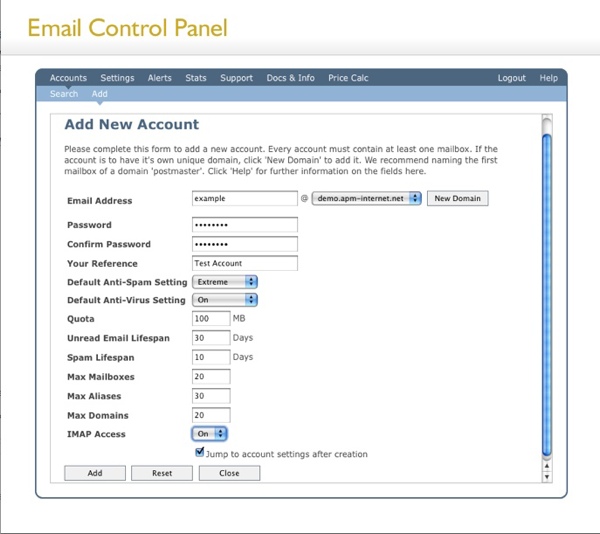
Note that ‘demo.apm-internet.net’ will be replaced by your default domain. Click ‘Create’
That’s it! The user is now active and you can see all their details and log into their control panel by clicking ‘List All Accounts’ and then their reference.
Explanation of Fields
Let’s take a look at the fields we’ve just completed…
- Email Address: The principle email address for the account. If the account is to have its own domain, this should normally be ‘postmaster@domain’. The principle account has administrative rights over the account and can create mailboxes and aliases (if you let them). Any additional mailboxes will only be able to view their own account details. If you want the account to have its own domain, click the ‘New Domain’ link before adding any details. This will refresh the screen and allow you to add a new domain in.
- Password: As you would expect. Users can change their passwords in the control panel at any time.
- Your Reference: You own choice of reference for the account. This field can be useful for matching accounts to your billing system.
- Default Anti-Spam Setting: The ‘default’ value for anti-spam settings. A slider defines the the Anti-Spam level – ranging from 1 to 5 where 1 is the lowest level of protection. Level 5 is Level 4 + IP reputation he available settings are ‘Disabled’, ‘Low’, ‘Medium’, ‘High’ and ‘Extreme’. Despite it’s name, we find that ‘Extreme’ works best! End-users are free to change these settings. The additional value of ‘Unavailable’ means that the user will have no anti-spam on the account.
- Default Anti-Virus Setting: As with Anti-Spam, you can set the default value. Anti-virus is a charged extra and will be charged regardless of whether it is enabled or disabled. To create an account that does not incur a charge for anti-virus, set to ‘Unavailable’.
- Quota: The amount of disk space, in MB, that the account can hold. Quota is shared amongst the account’s mailboxes and cannot be divided amongst accounts.
- Email Lifespan: The amount of time (in days) an email sits in the Inbox before being deleted. This applies to all mails for a POP3 account and only unread mails for an IMAP account.
- Spam Lifespan: The amount of time that spam sits in the quarantine folder before being deleted. We recommend you keep this reasonably short as spam affects quota.
- Max Mailboxes: The maximum amount of mailboxes that can be created by the primary mailbox owner (inclusive). Please note you will be billed for these mailboxes whether they are created or not.
- Max Aliases: The maximum amount of aliases that can be created. There are no charges associated with this feature.
- Max Domains: Again, the maximum amount of domains that can be associated with this account.
- IMAP Access: Whether IMAP access is available or not. Please note that this is a chargeable extra.
- Next Steps: Now you’ve created a test account, why not log in as it (use the email address and password). You can see how users can create additional mailboxes and aliases and well as control various settings. Remember that we only bill you for whatever exists at the end of each month, so you can create sample accounts at your leisure. As long as they don’t exist on the last day of the month, you won’t be billed for them.
- SMTP Forwarding Accounts: If you would like to set up an account to filter email for an existing SMTP server, you need to create an SMTP forwarding account. A separate document is available to cover this procedure.